The binder you already know how to use.
Tabbed binders for reports, filings and notes. Write on any page with Apple Pencil. The same binders on iPad, iPhone, Mac and the web.
iPad, iPhone and Mac · Works offline · Encrypted on the device before it syncs
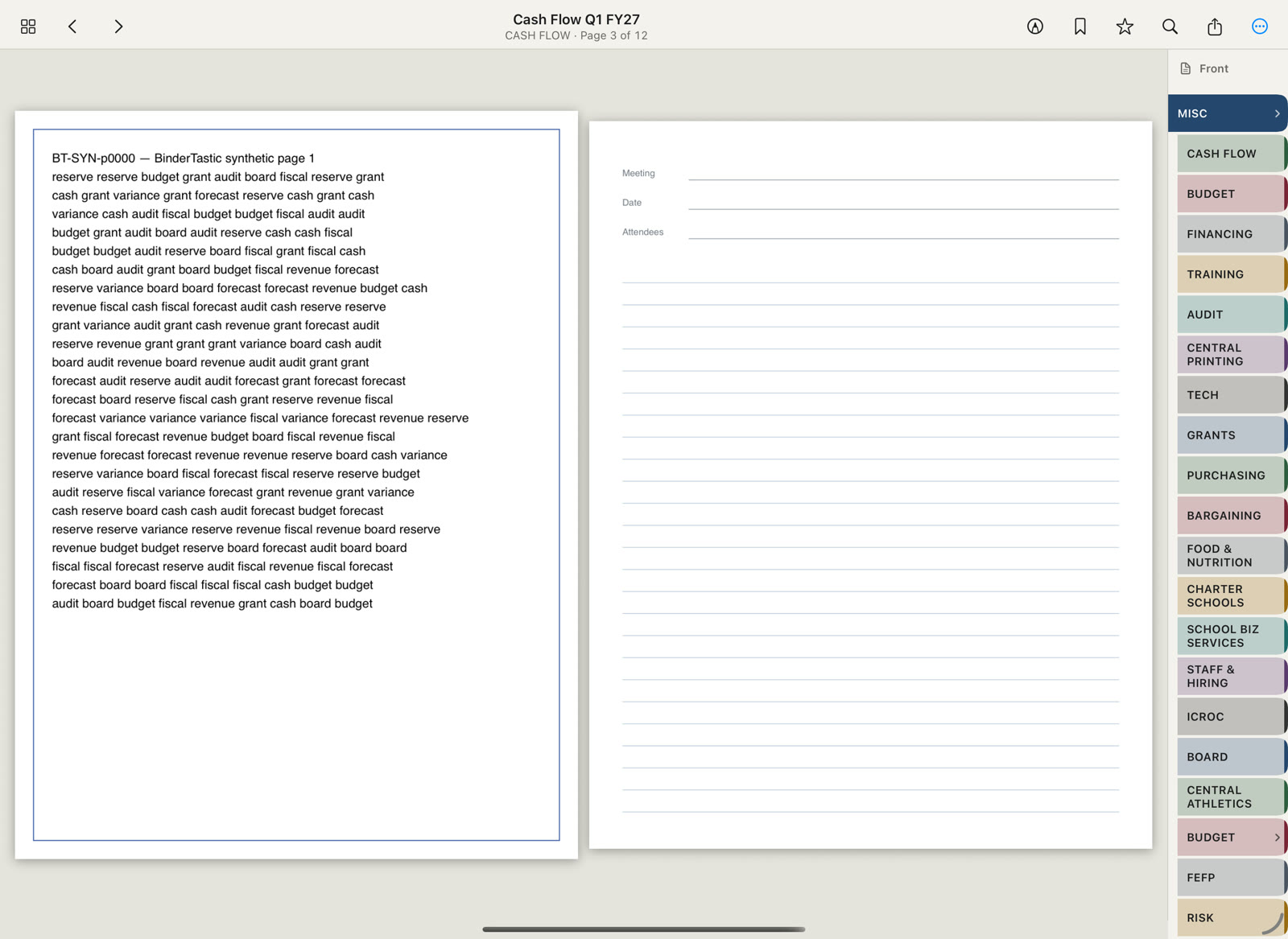
Tabs, pages and handwritten notes.
Client files, board materials, class binders, household records. Set the binder up the way you would a physical one, then write on the pages.
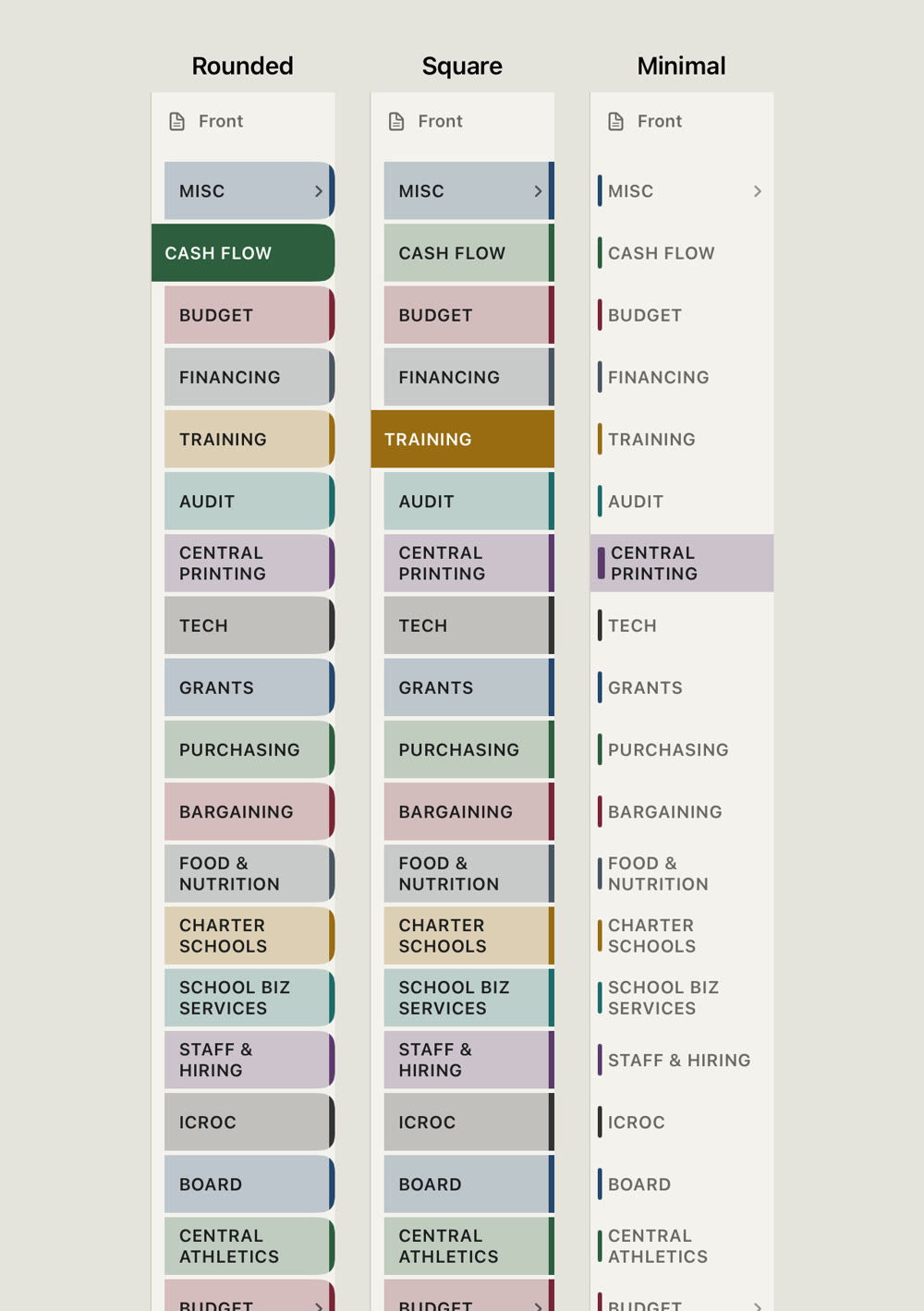
Tabs for each section.
Add tabs and subtabs for clients, matters, quarters or committees. Color them, choose a tab style, and open a section with one tap.
- Unlimited tabs and subtabs, in your order
- PDFs, scans and note pages in the same binder
- Rounded, square or minimal tabs in eight colors
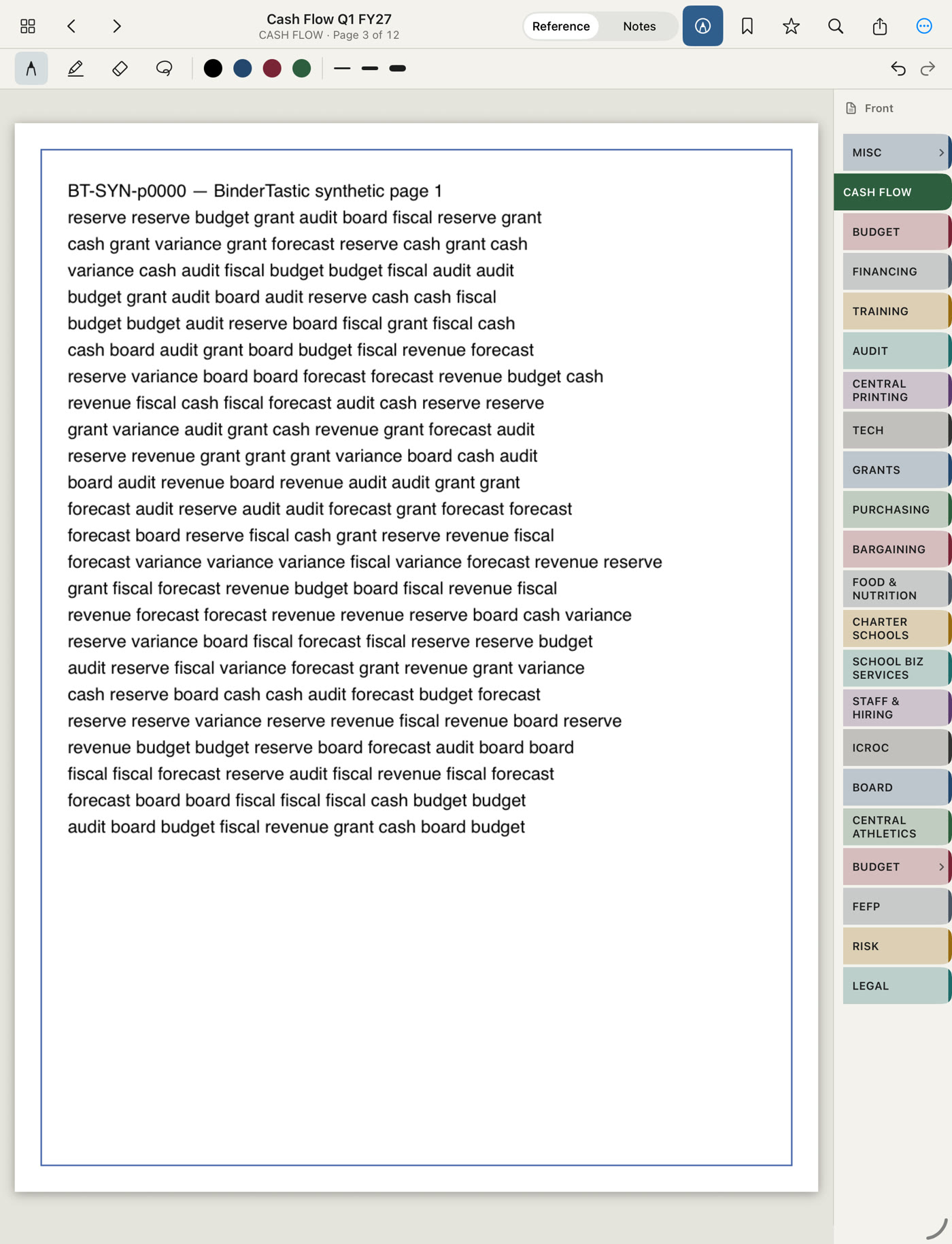
Write on any page.
Mark up the document with pen and highlighter. Handwriting is stored as standard PDF ink, so it appears in Preview, Acrobat and in email.
- Low-latency Apple Pencil ink with palm rejection
- Pen, highlighter, eraser, lasso, undo and redo
- Annotations stay editable in BinderTastic and visible in other PDF readers
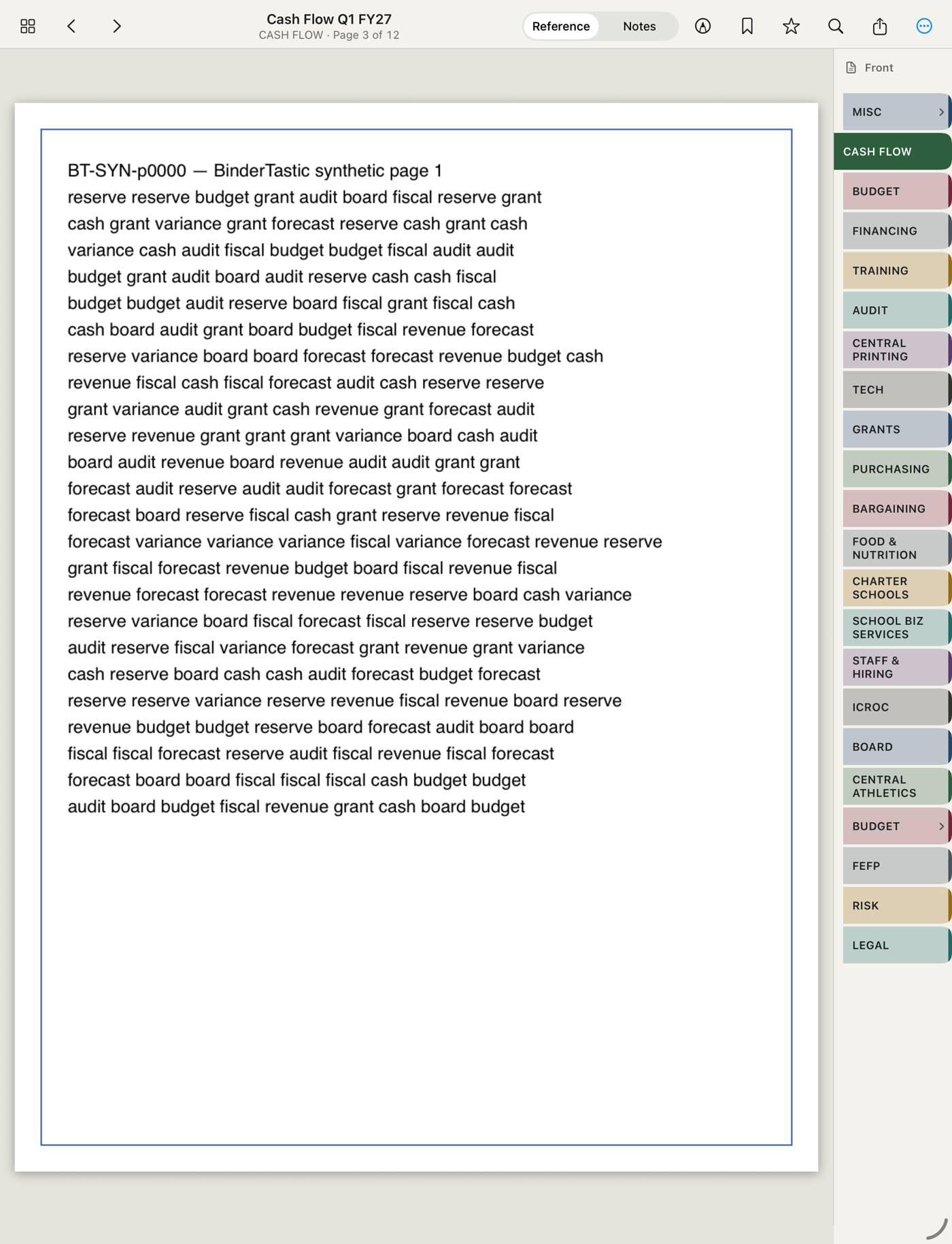
Reference on the left. Notes on the right.
Turn the iPad sideways and take notes beside the document you are working from. Insert ruled, grid, dot or meeting pages anywhere in a binder, and export them as PDF.
- Side-by-side reference and notes in landscape
- Blank, ruled, grid, dot and meeting paper, Letter or A4
- Export notes as vector PDF
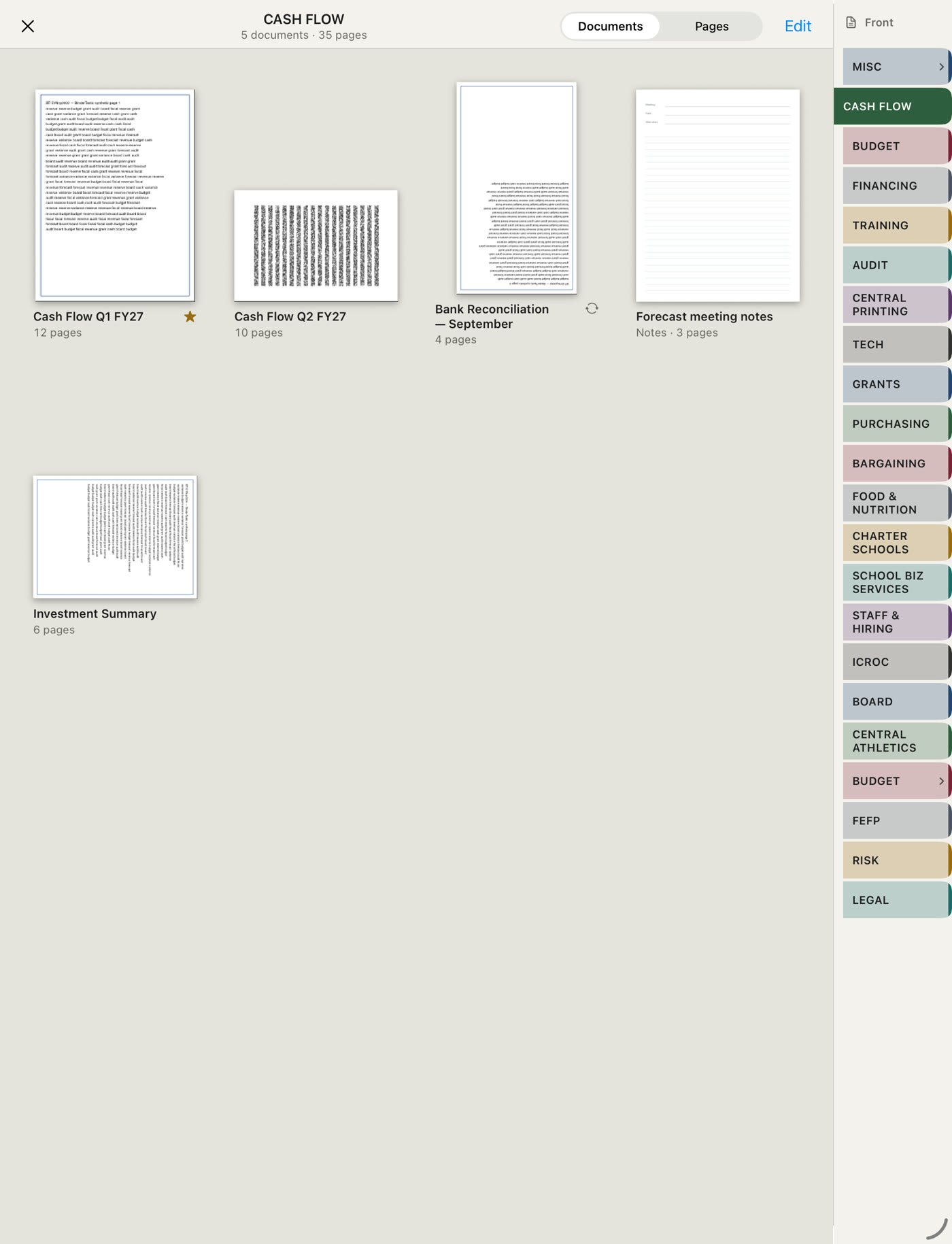
See the whole binder at a glance.
On iPad, browse every document in a tab, drop PDFs from Files onto the open tab or folder, and drag documents onto folder rows. On Mac and in the web app, use full drag-and-drop to reorder tabs, subtabs, folders and files.
- Document and page index for every tab
- Mac Binder Manager: tabs, subtabs, folders and PDFs from Finder
- Web app at app.bindertastic.com: same organizing in Edit mode when sync is on
- Search across binders, including scans Coming
Organize binders in the browser.
Sign in at app.bindertastic.com (or use Log in here). Open a synced binder, choose Edit, then drag tabs, subtabs, folders and documents. Drop PDFs from your desktop into a tab or folder. Choose Done to read.
| Web app (Edit) | Mac Binder Manager | iPad / iPhone | |
|---|---|---|---|
| Reorder tabs and subtabs | Yes | Yes | Rail: reorder among siblings |
| Make a subtab by dragging a tab | Yes | Yes | Use Move To in the tab menu |
| Reorder documents in a tab | Yes | Yes | Move To menu |
| Move documents onto folders | Yes | Yes | Drag onto folder rows |
| Import PDFs by dropping files | Yes | Yes (Finder) | Drop onto open tab or folder |
Private binders need an approved web session from Settings › Sync on iPad or Mac. Basic or Pro sync required for cloud binders.
A record of what changed.
Each save is a new revision. Each change is logged with who made it, when, and on which device.
Version history
Every save creates a new revision. Earlier versions remain available. When two devices edit at once, both copies are kept; nothing is silently overwritten.
Tamper-evident audit log
Each change is recorded with who, what, when and which device. Entries are append-only and hash-chained, so alteration of the record is detectable.
Encrypted before it leaves the device
On iPad and iPhone, files use iOS Data Protection. If you sync, the binder is encrypted on the device before upload. We do not have the keys. Optional AI features stay off unless you turn them on.
Works without a network
Edits save on the device and sync when you are online again. A classroom, a plane or a site visit without Wi-Fi is not a problem.
Teams and administration
Shared binders, an admin console, single sign-on and Private Sync are planned for Teams and Enterprise. Private Sync keeps documents on a Mac you operate. Contact sales →
Standard PDFs
Documents remain ordinary PDFs, and handwriting is a standard PDF annotation. Export is available on every plan, including after a subscription ends.
Free to write. Pay for sync.
Writing, markup and local binders are included on every plan. A subscription adds sync across devices, cloud storage and a year of version history. Search with OCR is coming on paid plans.
Free
This device only. No account required.
- Unlimited binders on this device
- Apple Pencil writing and PDF markup
- Scan paper and import PDFs
- iPad, iPhone and Mac, each independently
- Export at any time
Basic
$44.99 a year. 7-day trial. Sync across your devices.
- Everything in Free, synced to iPad, iPhone, Mac and the web
- 10 synced binders; unlimited remain on the device
- 25 GB cloud storage
- One year of version history and a full audit log
- Search with OCR, coming
Pro
$69.99 a year. 7-day trial. Unlimited synced binders.
- Everything in Basic
- Unlimited synced binders
- 50 GB cloud storage
- One year of version history and a full audit log
- Search with OCR, coming
Teams
Shared binders for a department, school or firm. Enterprise by arrangement.
- Intended price: $12 per person per month, billed annually
- Full product on every seat
- 50 GB per person, not pooled
- 7-day trial for the organization
- Enterprise: SSO, MDM, DPA, custom retention
| Free | Basic | Pro | |
|---|---|---|---|
| Pencil, PDF markup, scan, export | Yes | Yes | Yes |
| Synced binders | This device only | 10 | Unlimited |
| Cloud storage | — | 25 GB | 50 GB |
| iPad, iPhone, Mac and web in sync | — | Yes | Yes |
| Version history and audit | — | 1 year | 1 year |
| Search with OCR | — | Coming | Coming |
| 7-day trial | — | Yes | Yes |
Private preview. Personal plans billed through the App Store, in USD. Teams and Enterprise are not for sale yet.
Questions
When can I use BinderTastic?
BinderTastic is in private preview, beginning on iPad. Request access and we will invite you as places open. iPhone, Mac and the web app use the same App Store purchase.
Will my annotations show up in other apps?
Yes. Handwriting is stored as standard PDF ink, so it appears in Preview and other PDF readers, and when you email or share the file.
What happens if I stop paying?
Binders on your devices stay. For 365 days after the subscription ends you can still sign in to read, download and export the cloud copies, or export everything as one zip. After that window, cloud copies are subject to deletion. We notify you before anything is removed.
Does BinderTastic use my documents to train AI?
No. Optional AI features are off by default. Documents are never used to train models.
Can I import from GoodNotes, Notability or files I already have?
Any PDF can be imported from Files, email, the share sheet or, on the Mac, by dragging from Finder. Most note apps export notebooks as PDF, which BinderTastic opens with the handwriting intact.
How do I organize tabs and documents?
On Mac and in the web app (Edit mode), drag tabs, subtabs, folders and documents, and drop PDFs from your desktop. On iPad, reorder tabs on the rail among siblings, drop files onto the open tab or folder, and drag documents onto folders. See Web app for a full comparison.
Where is my data stored?
On your devices. If you turn on sync, the binder is encrypted there and the encrypted copy is stored in Google Cloud (Firebase) in the United States. We do not have the keys. See the Privacy Policy and Security page.
Request access
Places are limited, beginning on iPad. Tell us how you would use BinderTastic.